
Open this page when you need to check device status, change Player settings, or troubleshoot playback issues.
Enter the Player Settings Page First
During playback, press Back on the remote to open the Player home screen. Use the arrow keys to select "App Settings" and press OK / Confirm. This is the usual method for TVs.
Without a remote, you can double-tap the playback screen by default, then select "App Settings." Use your finger on a touchscreen, or connect a mouse and double-click.
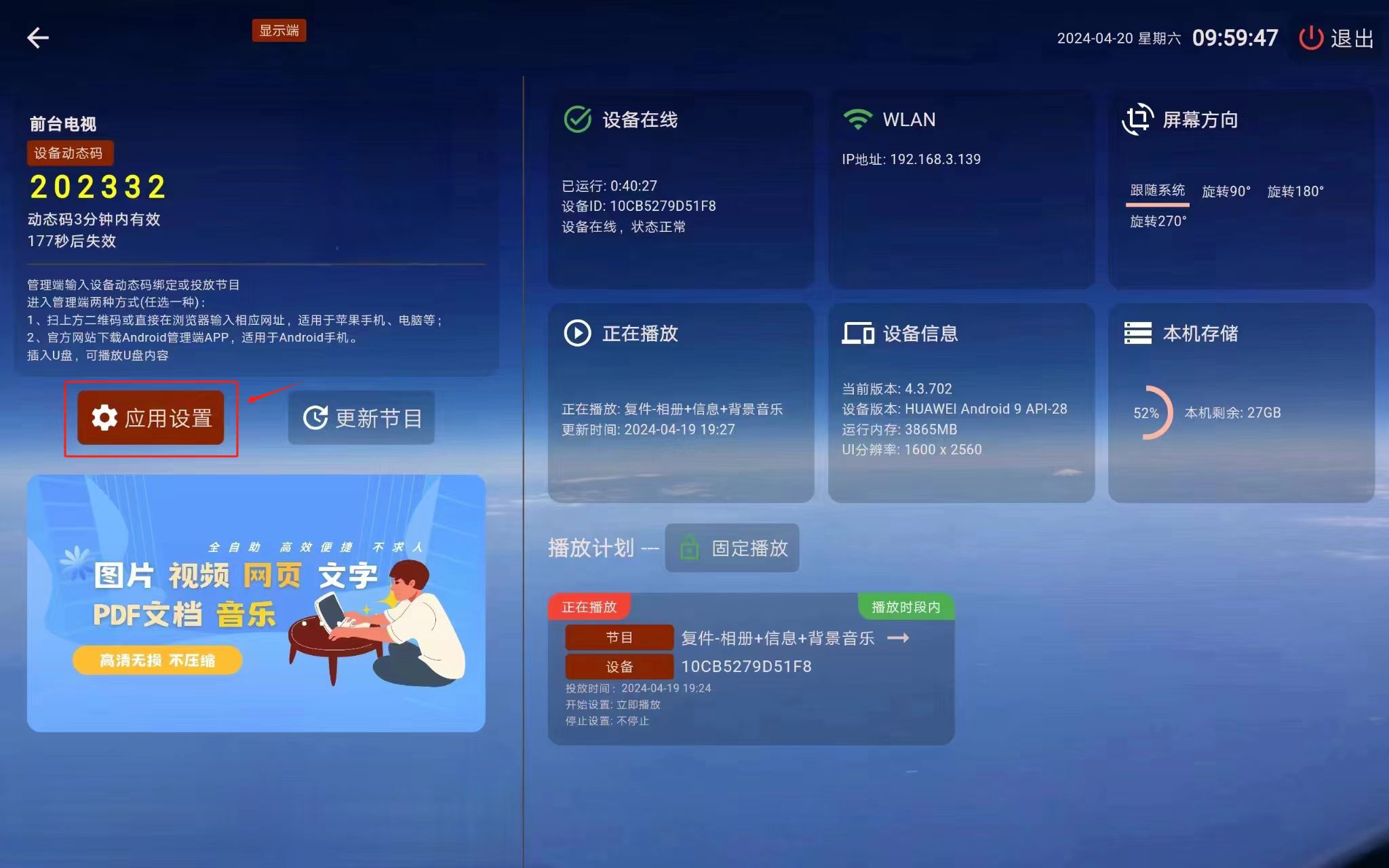
If you changed the "Open Homepage Method," use that configured method for the double-tap entry instead.
The settings page looks roughly like this:
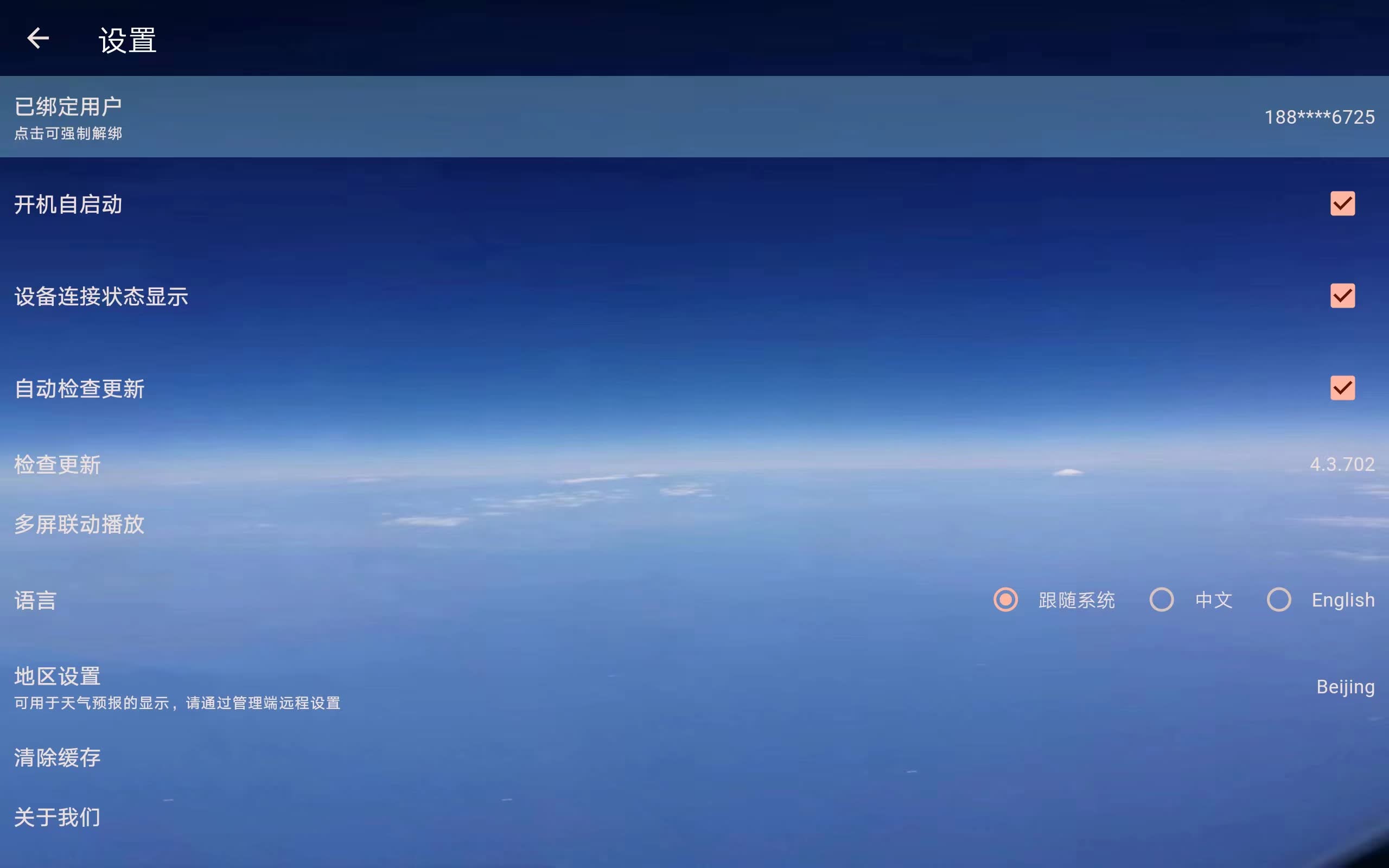
For everyday use, the most common settings are usually these:
- Bound User
- Auto-start on Boot
- Clear Cache
- Set Password
- Video Decoder Selection
Common Settings
- Bound User This lets you forcibly unbind the currently bound user. After unbinding, the device will stop receiving program updates, so use it carefully. It is mainly for cases where the original administrator can no longer be contacted and the device must be taken over.
- Auto-start on Boot This software supports auto-start, but some TVs or signage devices block third-party apps from auto-starting at the system level. So whether it works still depends on the device itself. You can read more in How To Auto Start.
- Device Connection Status Display The bottom-left corner of the playback screen can show connection-related error messages. If everything is working normally, nothing is usually shown there. If you are intentionally using offline playback and do not want to see network error prompts, you can hide them by turning this option off.
- Auto-check for Updates Keep this enabled to check for newer versions automatically. You may still need to confirm the update and complete installation in Android's system window. See Update the Player App.
- Check for Updates Manually check for a newer version. There is also a “Check Update” card on the Player home screen, and remote settings can request a check on the Player. See Update the Player App for download, installation, and version verification.
- Language Switch the Player app interface language.
- Clear Cache If programs have already been synchronized but playback is abnormal, try clearing the cache and synchronizing again.
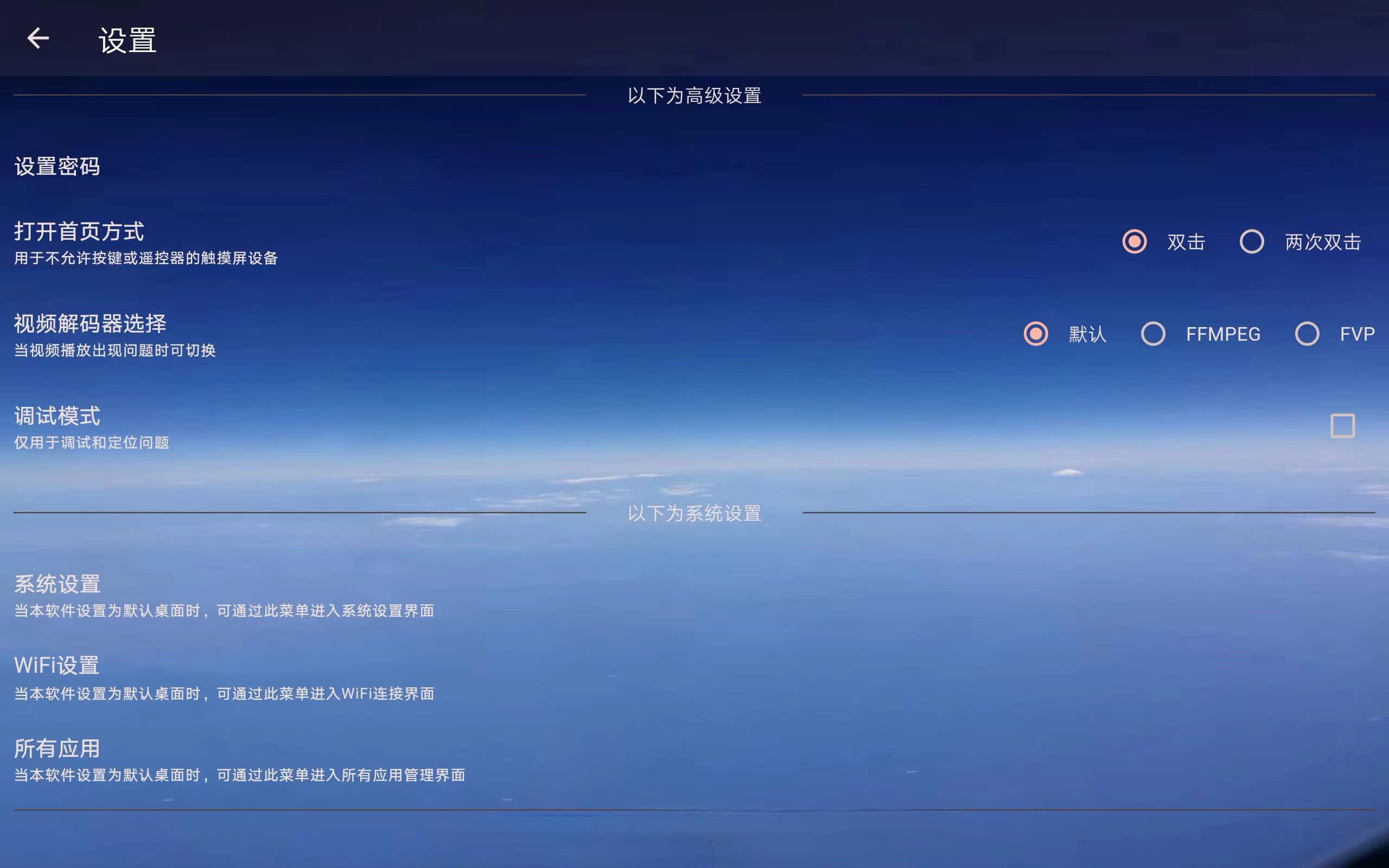
- Set Password After setting a password, users must enter the password before they can open the Player home screen or settings page. This is useful in stores, reception areas, or exhibition sites where you want to avoid accidental changes by end users.
- Open Homepage Method By default, double-clicking opens the Player home screen. On touch devices or devices with an external mouse, if you want to reduce accidental access to the settings page, you can change this to a more complex method.
- Video Decoder Selection If the device shows video playback issues such as black screen, lag, or missing image, try switching the video decoder. On Android,
Nativeuses MediaPlayer andNative2uses ExoPlayer. These two modes are suitable for a single full-screen video; use the default decoder for programs with multiple screen regions or mixed video, text, and images.
Settings Related to Playback Effects
- Multi-screen Synchronized Playback This is a Player-side linkage capability for some multi-device playback scenarios. If you only want multiple devices to play exactly the same program, see Same-Screen. If you want several screens to form one combined large image, see Multi-Screen.
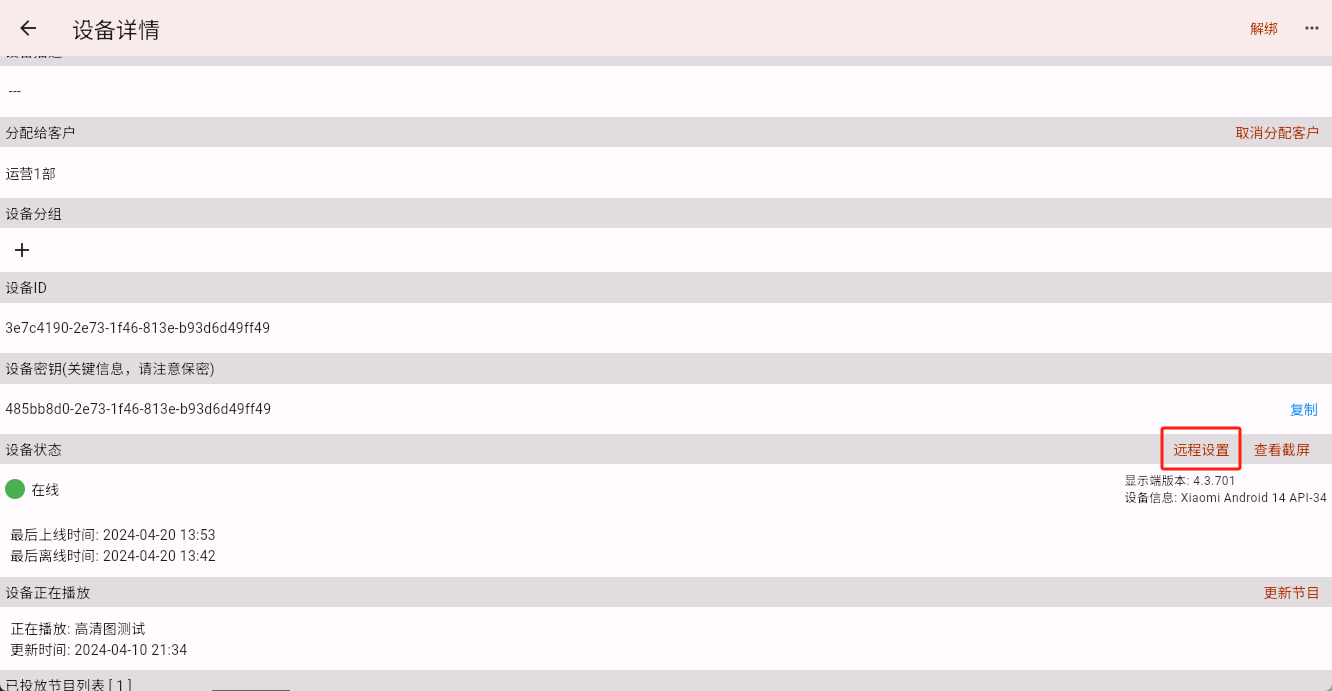
- Region Settings This is mainly used by the weather widget. If the region is not set inside the program itself, the weather widget uses this setting instead. Because it requires more input, it is usually configured through the "Remote Settings" function in device management on the Admin End rather than directly on the Player.
Security and Troubleshooting Settings
- About Us View the user agreement and privacy policy.
- Debug Mode This is usually only used when customer support is helping to troubleshoot an issue. If strange debug characters suddenly appear on the screen, this mode was probably enabled by mistake. Turning it off should fix that.
- System Settings These entries all help you open the device's system settings. This is especially useful when the software has been set as the default launcher. If you find that "exiting the app still returns to this app," you can use these entries to open system settings, remove it as the default launcher, or uninstall it.
How a Beginner Should Decide Whether to Change These Settings
If the device is already receiving programs normally, playing normally, and has no orientation, startup, or cache-related issues, then most settings do not need to be changed.
Open this page only when you want to adjust device behavior or when you need to solve a playback problem.