
Image Material
Image material is one of the most common media types. It is suitable for posters, menu images, promotion images, brand screens, welcome pages, and other static visual content.
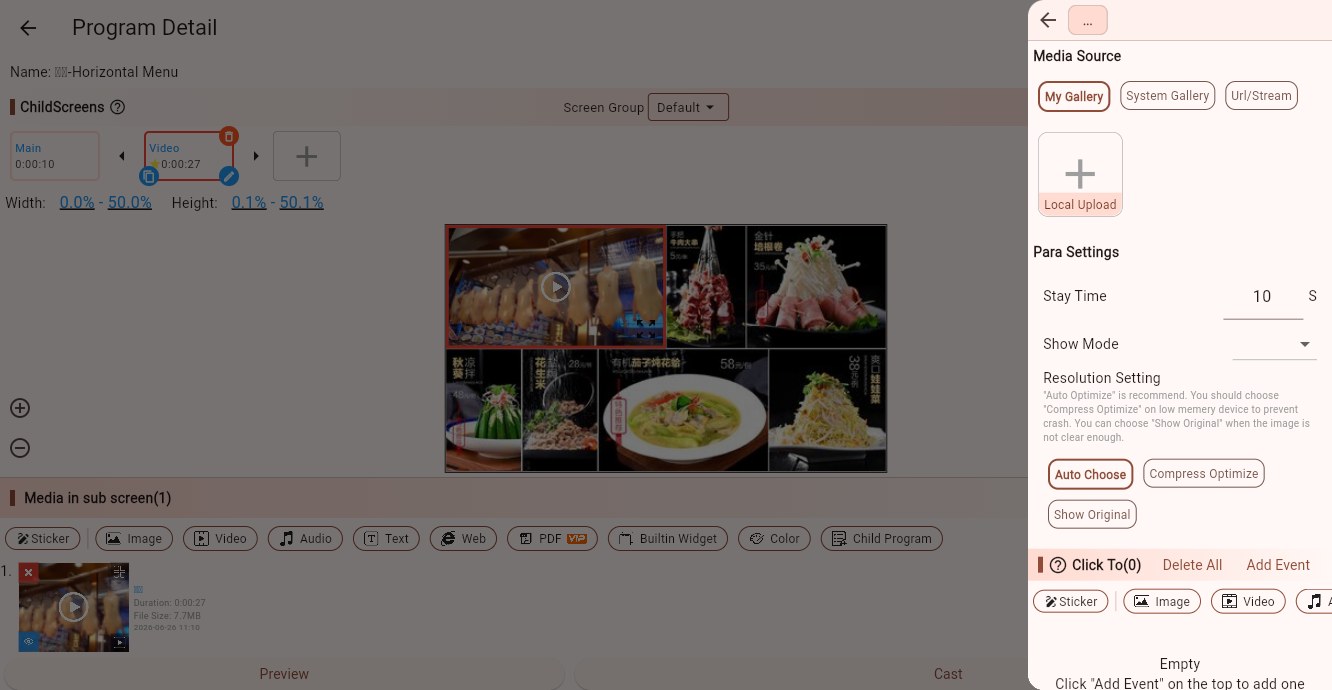
Media Sources
Image material supports several source types:
- My Gallery: select an uploaded image, or click Local Upload to upload a new image.
- System Gallery: select a built-in image from the system gallery.
- Network/Streaming: enter an image URL. The Player end loads it from the network.
Common formats include JPG, PNG, WebP, and GIF. For the best result, use an image resolution close to the actual screen resolution.
Parameters
Stay Time
Controls how long the image stays in the current child screen. When multiple images rotate, the next media item plays after this duration.
Display Mode
Controls how the image fits the child screen:
- Contain: shows the full image without cropping. Blank space may appear if the aspect ratio does not match.
- Cover: keeps the aspect ratio and fills the child screen. Some edges may be cropped.
- Fill: stretches the image to the child screen size. It fills the area but may distort the image.
- FitWidth: fits by width and is useful for long images such as menu boards or long notices.
Auto Scroll
Available when the display mode is FitWidth. It lets long images scroll automatically.
Scroll Speed
Controls the speed of long-image auto scrolling. Use a slower speed when the image contains text.
Scroll Mode
Common modes are:
- Ping-pong: scrolls to the end and then reverses.
- Loop: keeps scrolling in the same direction.
Blurred Background Fill
When display mode is Contain and the image does not fill the child screen, this option fills the blank area with a blurred version of the image.
Resolution Mode
Controls the tradeoff between image quality and device performance:
- Auto: recommended. The system decides the display strategy.
- Compression Optimization: reduces memory usage for low-performance devices or very large images.
- Original Image: tries to use the original quality. Use this for high-quality screens and capable devices.
Tips
Use Cover for full-screen posters or background images.
Use Contain or FitWidth when the image contains important text, prices, QR codes, certificates, or other content that must not be cropped.
If the image looks blurry, check the original resolution first, then try Original Image. If the device is not powerful enough, use Auto or Compression Optimization.
Click Events
Image material can have click events. Typical use cases include opening a detail page, jumping to another media item, or building a simple touch-screen menu.