
Built-in Widget
Built-in widgets are media items generated by the Player end. They do not require external files and are useful for live content such as clocks, weather, and camera preview.
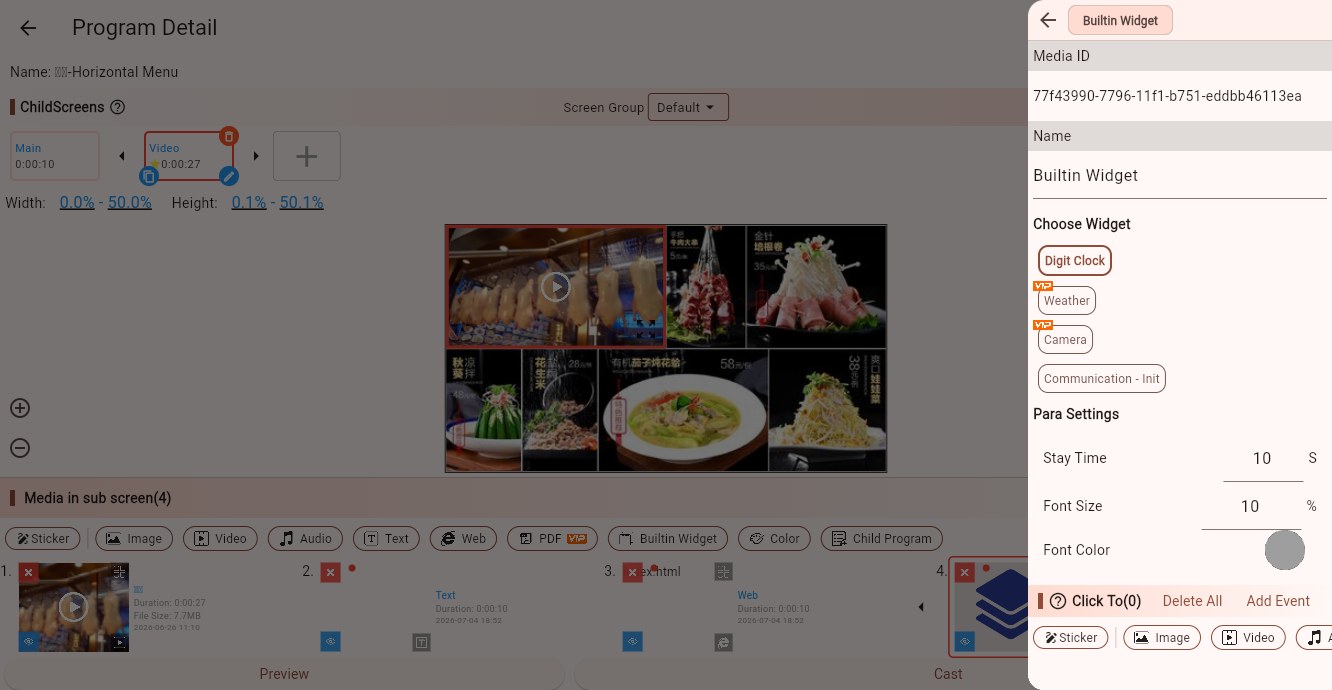
Widget Types
Common widgets include:
- Digit Clock: displays the current time. Useful for welcome screens, store screens, and duty boards.
- Weather: displays weather for a selected city or area. Useful for lobbies, hotels, stores, and campus screens.
- Camera: displays a camera feed from the device. Useful for photo booths, monitoring preview, and interactive displays.
- Communication - Init: used for advanced interaction and communication scenarios. Most users do not need it.
Some widgets may require membership features or device permissions, such as weather and camera.
Common Parameter
Stay Time
Controls how long the widget stays on screen. When multiple media items rotate, the next item plays after this duration.
Digit Clock Parameters
Font Size
Controls the clock text size. Use a larger size for long viewing distances.
Font Color
Controls the clock text color. Use enough contrast against the background.
Digit Clock is often placed on top of an image, a color background, or a split-screen area.
Weather Parameters
Font Color
Controls weather text or icon color.
Show Horizontally
When enabled, weather content is arranged horizontally. This is useful for wide areas. Disable it for narrow or vertical layouts.
Area
Select the city or area for weather data. In multi-store scenarios, set a clear area for each store or device.
Camera Parameters
Camera Source
Select back, front, or another camera index. Available cameras depend on the device.
Mirror
Mirrors the camera image. Front-camera selfie scenarios usually need this.
Fill
Controls whether the camera image fills the child screen. Fill may distort the image if the aspect ratio does not match.
Rotate
Choose 0, 90, 180, or 270 degrees. Use this when camera orientation does not match the screen orientation.
Tips
Widgets work well together with other media. For example, show a video or image in one area and show clock/weather in another area.
If a widget requires device permission, such as camera access, allow it in the Player end system settings first.
If weather is incorrect, check the area setting and device network.
Click Events
Built-in widgets support click events. Touch-screen scenarios can jump from a clock or weather widget to a detail page. Ordinary display screens usually do not need click events.