
Web Material
Web material plays web content inside a program. It can open an online web URL, or it can play a web ZIP package uploaded by the user.
Many AI tools can now generate dynamic web pages quickly, such as menu boards, dashboards, welcome screens, and interactive display pages. In the past, this usually required deploying the page to a server and then using its URL. Now you can package the generated web files as a ZIP file, upload it to the media library, and play it on the Player end without deploying a separate server.
Two Source Types
Web material supports two source types:
- Web URL: enter an
http://orhttps://URL. The Player end opens this URL directly. - Web ZIP Package: upload a ZIP file that contains
index.html, CSS, JavaScript, images, and other assets. The Player end downloads the ZIP package and opens the entry page locally.
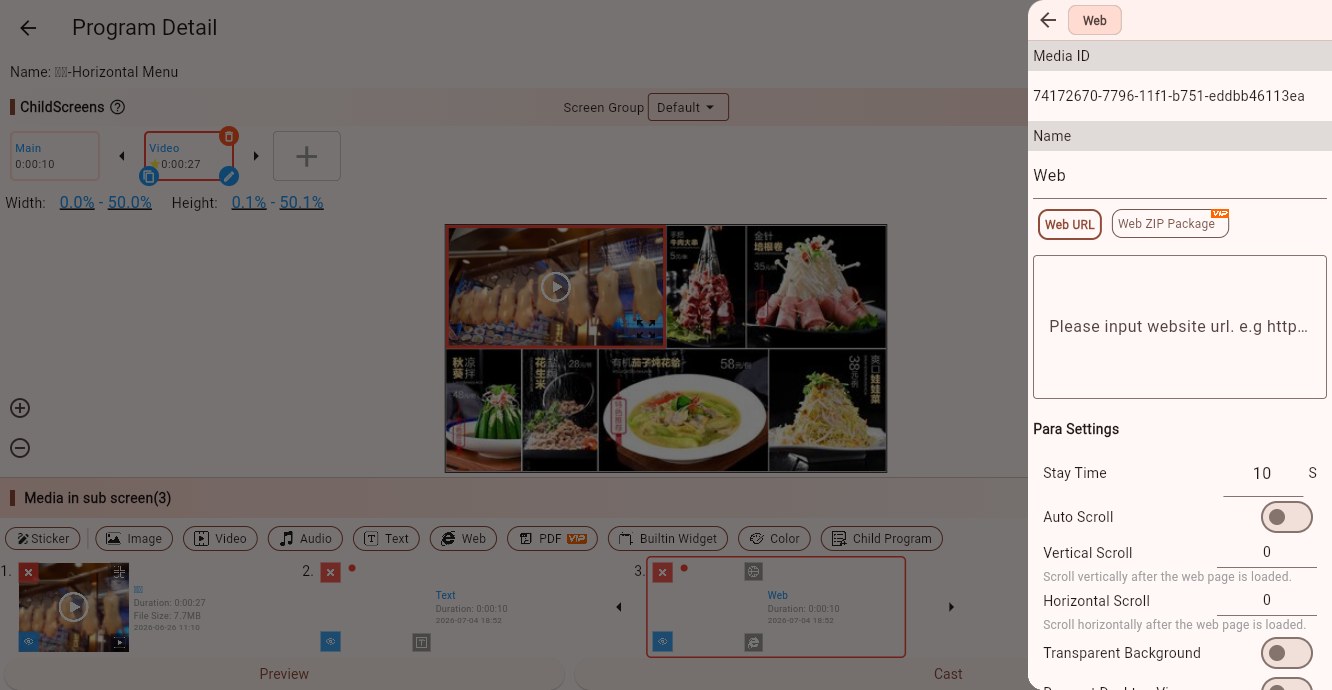 Web URL mode
What Is a Web ZIP Package?
A web ZIP package is a packaged static website. It usually contains at least one entry HTML file, and may also contain stylesheets, scripts, images, fonts, audio, video, and other assets.
A simple structure looks like this:
menu-screen.zip
├─ index.html
├─ style.css
├─ main.js
└─ assets/
   ├─ logo.png
   └─ background.jpg
If the page is generated by an AI tool or a frontend framework, the output may look like this:
menu-screen.zip
└─ dist/
   ├─ index.html
   └─ assets/
      ├─ index.css
      └─ index.js
Both structures can work. The important part is to set the correct entry file:
- If
index.htmlis in the ZIP root, enterindex.html - If the page is under
dist/index.html, enterdist/index.html
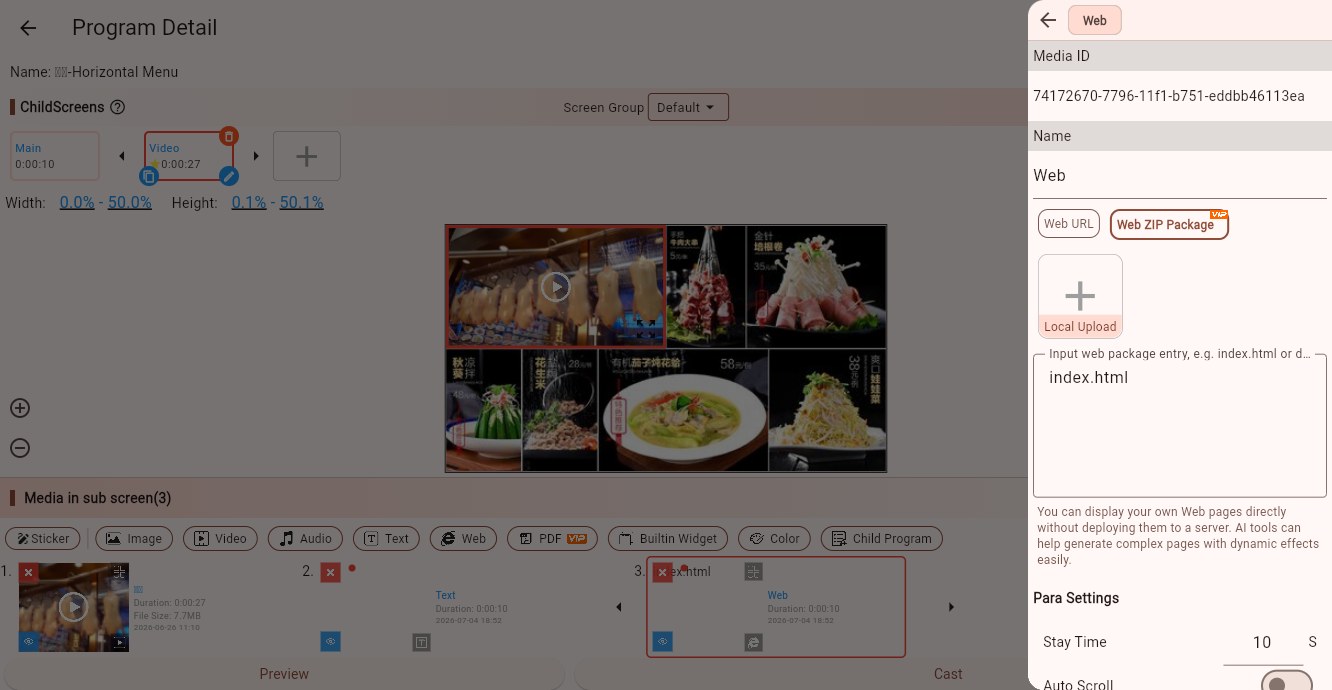 Web ZIP Package mode
How to Prepare the ZIP Package
If an AI tool generates a single-page HTML file, you usually only need to package index.html together with the images, CSS, and JavaScript files it references.
If the page is a React, Vue, Vite, or similar frontend project, do not upload the full source project directly. Build it first, for example:
npm run buildThen package the build output. Common approaches are:
- Zip the files inside
dist; the entry file is usuallyindex.html - Zip the
distfolder itself; the entry file is usuallydist/index.html
Use relative paths for assets whenever possible, such as ./assets/logo.png. Avoid local absolute paths. This allows the Player end to load images, scripts, and styles after downloading the ZIP package.
Upload and Select a ZIP Package
In the web material editing page, choose "Web ZIP Package", then click "Local Upload" to upload a ZIP file, or select an existing ZIP package from "My Gallery".
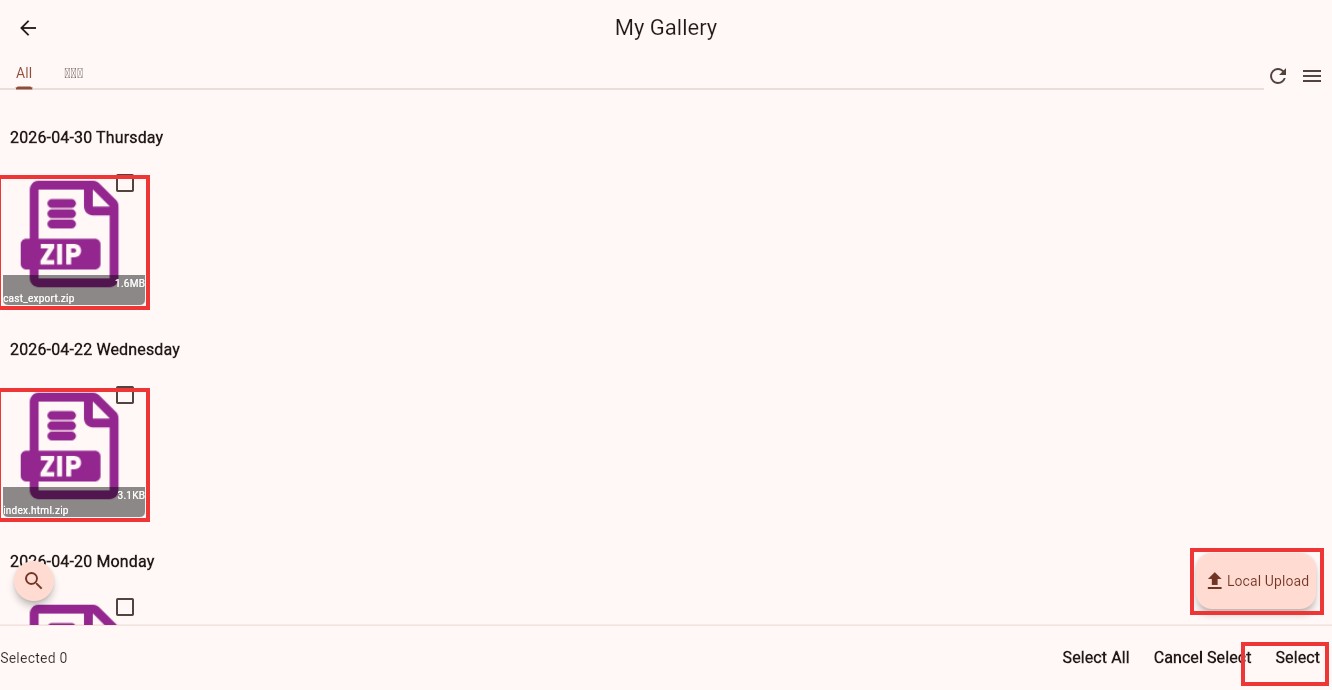 Select or upload a web ZIP package
After selecting a ZIP package, enter the page to open in the entry field, such as index.html or dist/index.html. The Player end starts loading the web page from this entry file.
Parameters
Stay Time
Controls how long the web material stays on screen.
Auto Scroll
When enabled, the page scrolls automatically based on the configured speed. This is useful for long pages, lists, and announcement pages.
Vertical Scroll / Horizontal Scroll
When auto scroll is off, these values are the initial scroll offsets after the page loads. When auto scroll is on, they are scroll speeds. Positive and negative values control direction.
Transparent Background
Use this when the web page background should reveal content below it. The page itself must also use a transparent background.
Request Desktop View
When enabled, the Player end tries to load the desktop version of the page. Use this when a website's mobile view does not display as expected.
Support Keyboard Control
Enable this if the web page needs keyboard, remote-control, or direction-key interaction, so the page can receive focus.
Open External Browser
When web material is used as a click-event target, this option can open it in an external browser. Normal embedded web playback usually does not need it.
Suitable Use Cases for ZIP Packages
- AI-generated dynamic menu boards, welcome screens, or promotion pages
- Animation pages built with HTML, CSS, and JavaScript
- Static pages built from frontend frameworks
- Complex web effects that you do not want to deploy to a server
- Pages whose assets should be delivered together with the program, reducing reliance on external websites
FAQ
The page is blank after uploading the ZIP package
Check whether the entry file is correct. For example, if the real path is dist/index.html but the entry field is index.html, the page cannot be found.
Images or styles are not loaded
Check the asset paths in HTML. Use relative paths instead of local machine paths such as C:\Users\... or /Users/....
Can I upload a page generated by an AI tool directly?
If the AI tool generated a single index.html, you can zip and upload it directly. If it generated a frontend source project, build it into static files first and upload the build output.
Can the web page inside the ZIP request online APIs?
Yes, but the Player end must be able to access those network addresses. If the content is fixed, place images, scripts, and styles inside the ZIP package to reduce external dependencies.
How do I update the page later?
Package and upload the updated ZIP again, select the new ZIP package in the web material, and save the program. The Player end plays the new web content after synchronization.