
Open this page when you already have a sub-screen but still want to adjust its background, animation, playback behavior, or interactive focus.
For most normal programs, these settings do not need to be changed every time. The most commonly used ones are usually:
- Background Settings
- Transition Animation
- Transition Time
The rest can be left for later if needed.
Open More Sub-screen Settings
First select the sub-screen you want to configure.
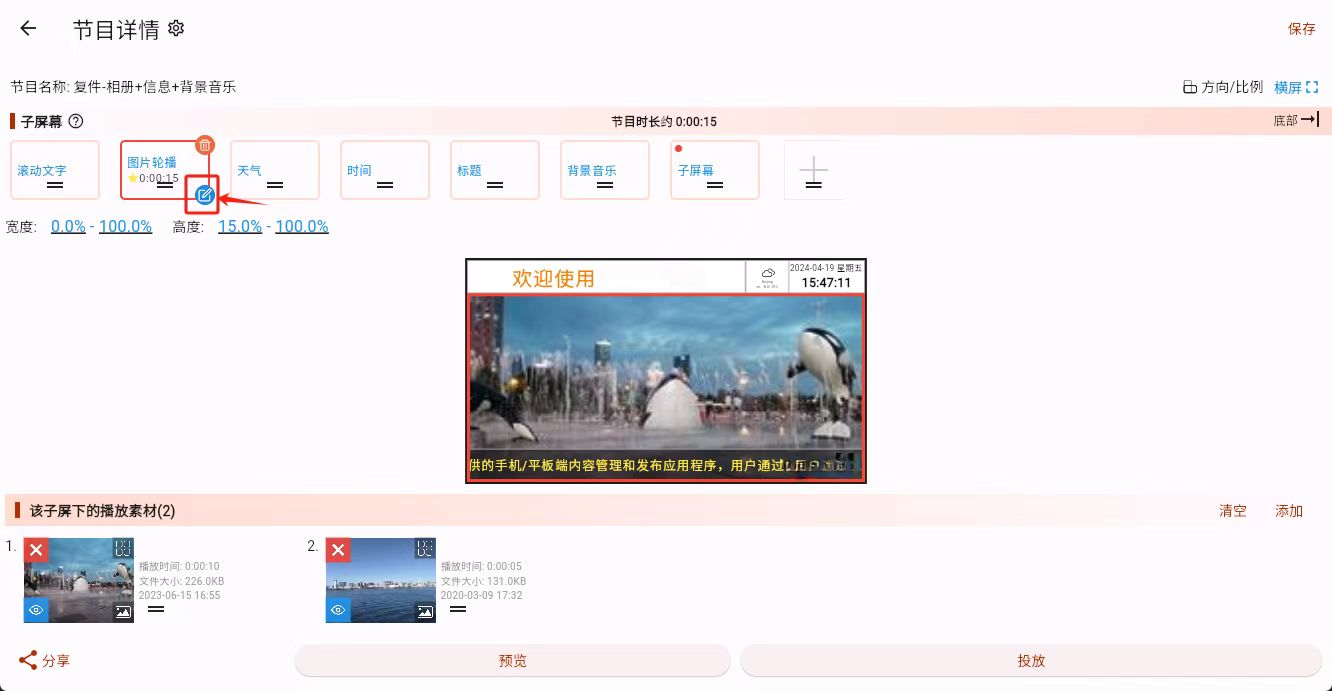
Then click the edit button in the lower-right corner to open the "Sub-screen More Configuration" page.
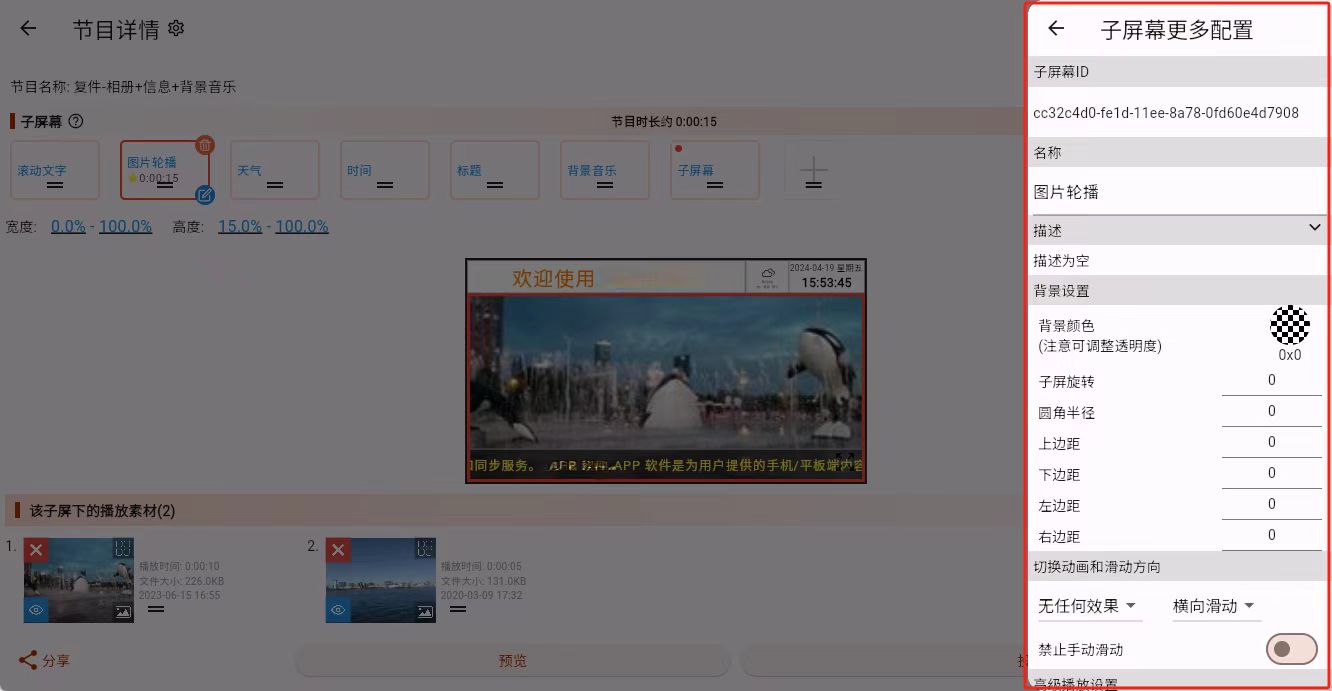
What These Settings Mean
- Description Add a note for this sub-screen. It is mainly for your own recognition later and does not directly affect playback.
- Program Grouping This is mainly for management and classification. Most beginners can ignore it at first.
- Background Settings Set the background color of this sub-screen. The default is transparent. You can also set rotation angle, rounded corners, and the margins on each side here.
- Transition Animation and Slide Direction If this sub-screen contains multiple materials, you can control how they switch and in which direction they slide. This only matters when there is more than one material inside the sub-screen.
- Advanced Playback Settings These mainly include transition time, random playback, and first media play once:
- Transition Time: controls how long each material stays before switching
- Random Playback: makes the materials in this sub-screen play in random order
- First Media Play Once: useful in some launcher scenarios, for example when the first material is an intro video that should only play once
- Focus Settings This is mainly for interactive programs. It controls whether this sub-screen can be selected and how the focus border looks when it gains focus.
What a Beginner Usually Needs to Care About
If you are only making a normal menu screen, promotion screen, or notice screen, the main items to care about are usually:
- Background Settings
- Transition Animation and Slide Direction
- Transition Time
If you are not making an interactive program, Focus Settings can usually be ignored for now.