
Music Material
Music material plays audio content. It can be used as background music, voice announcements, notification sounds, or audio-only programs.
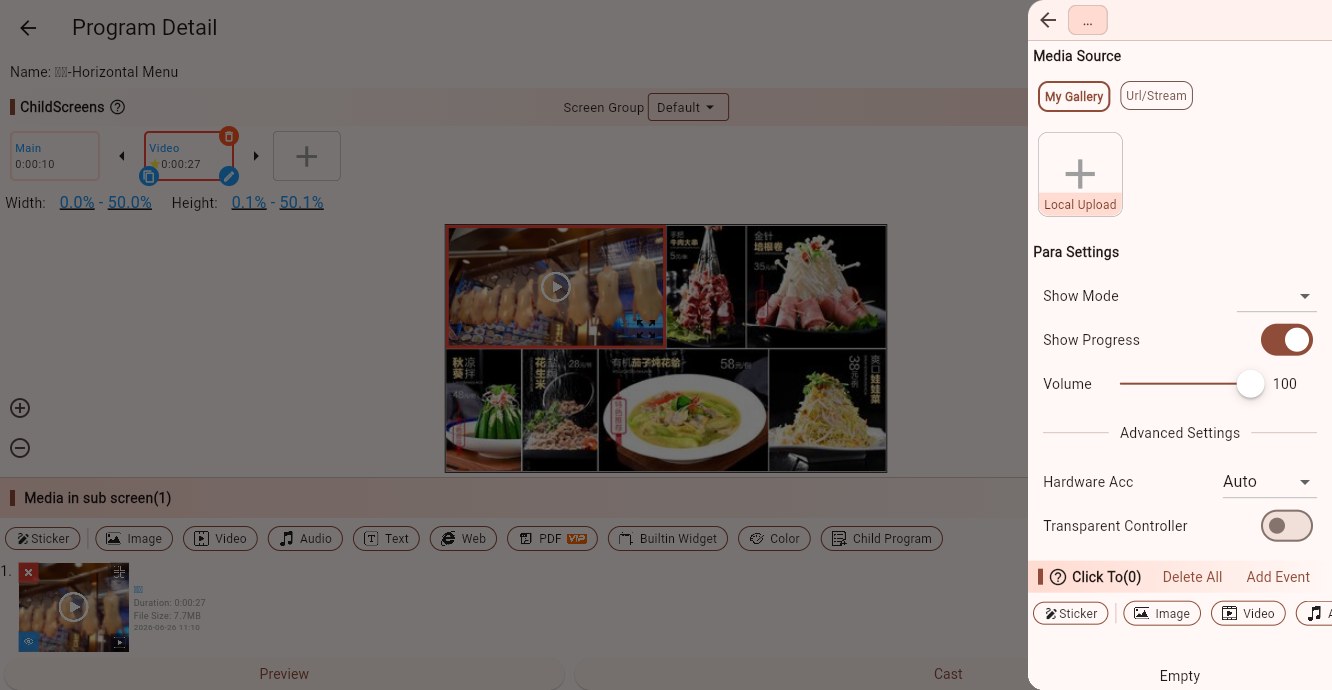
Media Sources
Music material supports:
- My Gallery: select an uploaded audio file, or upload a new local audio file.
- Network/Streaming: enter an audio file URL or streaming URL.
Common formats include MP3, AAC, and WAV. MP3 or AAC is recommended for compatibility.
Parameters
Display Mode
Audio has no visual frame, but it still belongs to a child screen. Display mode mainly affects the audio card or controller area.
Streaming
When the source is a network URL, this option marks it as a stream. Use it for online radio, live audio, and similar sources.
Show Progress Bar
Shows playback progress. Background music usually does not need it; testing and interactive playback may use it.
Volume
Controls audio volume from 0 to 100. Test on the actual device, especially when multiple devices play audio at the same time.
Hardware Acceleration
Controls media decoding. In most cases Auto is enough. If a specific file cannot play, try another mode or transcode the file to MP3/AAC.
Transparent Controller
If the controller is visible, this option makes it transparent. Background music usually does not need a visible controller.
Tips
To add background music to a program, place a music material in a child screen and let it play together with visual media.
Avoid playing sound from multiple media items at the same time unless that is intentional.
If audio must stay strictly synchronized with a video, embed the audio into the video file instead of using separate video and music materials.
Click Events
Music material supports click events, but background music rarely needs them. Use click events for touch-screen audio guides, product narrations, or audio-on-demand scenarios.